Introduction
Data loss on a Mac can occur when you least expect it—whether due to accidental deletion, macOS updates, disk formatting, or system crashes. Losing important files like documents, photos, or business data can disrupt both personal and professional workflows.
Thankfully, modern free Mac data recovery software has become more advanced in 2026, offering improved scanning accuracy, better file support, and simplified recovery processes. Even without a backup, these tools can help restore lost files efficiently.
What to Look for in Free Mac Data Recovery Software
- File Compatibility: Ability to recover photos, videos, documents, and more
- Device Support: Works with SSDs, HDDs, USB drives, SD cards, etc.
- File System Support: Compatible with APFS, HFS+, FAT, exFAT
- Scan Modes: Quick scan for recent files and deep scan for complex recovery
- Preview Option: Allows checking files before recovery
- Ease of Use: Simple interface for non-technical users
1.Stellar Data Recovery Free for Mac
Key Features:
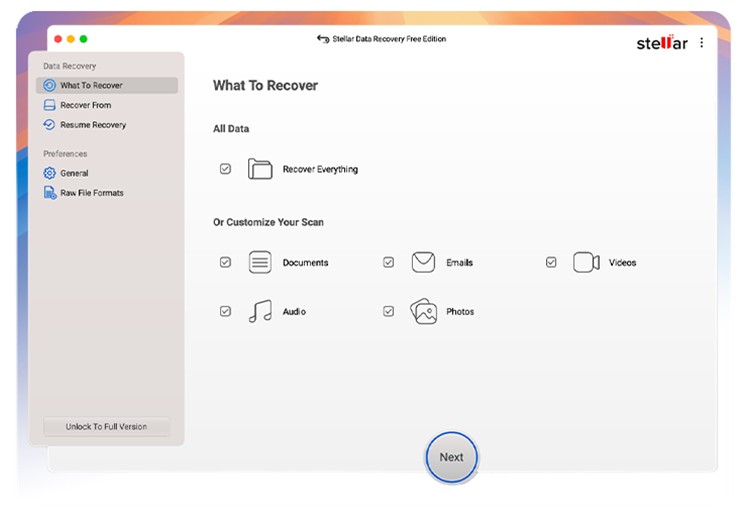
- Recovers documents, photos, videos, emails, and more
- Supports APFS and HFS+ file systems
- Deep scan for formatted and corrupted drives
- Preview before recovery
- Compatible with latest macOS versions
Pros:
- Beginner-friendly interface
- Reliable recovery performance
- Works well on modern Mac systems
Cons:
- Free recovery limited to 1 GB
- Deep scan can take time
Best For:
Users looking for a reliable and easy-to-use free Mac data recovery software.
2.EaseUS Data Recovery Wizard Free for Mac
Key Features:
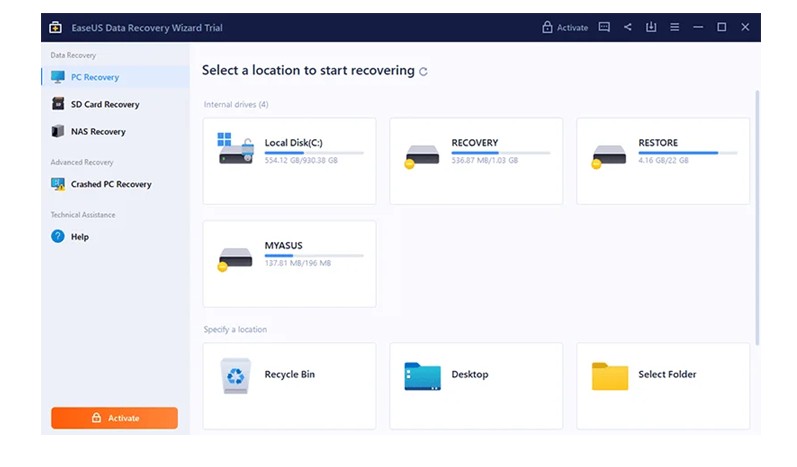
- Quick and deep scan modes
- Supports APFS, HFS+, FAT, exFAT
- File filtering and preview options
- Recovery from internal and external drives
Pros:
- Smooth user experience
- Wide file format support
- Efficient scanning
Cons:
- Limited free recovery
- Deep scan may be slow
Best For:
Users needing a simple yet effective recovery tool for everyday use.
3.iBoysoft Data Recovery for Mac
Key Features:
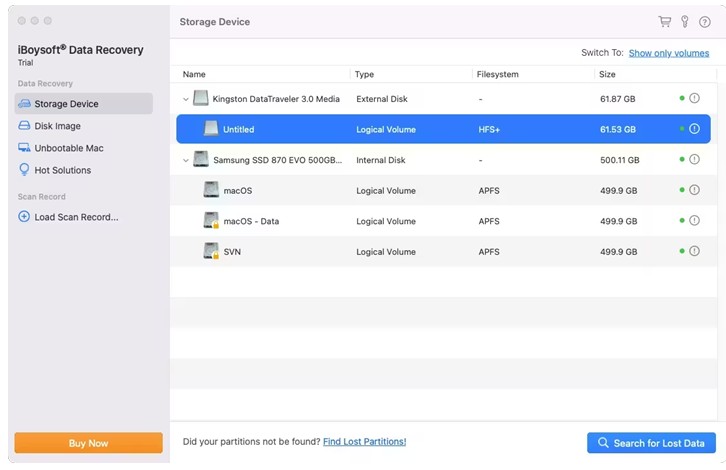
- Recovery from unbootable Macs
- Supports disk image recovery
- Compatible with APFS, HFS+, FAT32
- Works on Apple Silicon devices
Pros:
- High recovery success rate
- Supports advanced scenarios
- Easy-to-follow recovery steps
Cons:
- Limited free recovery
- Premium plans are relatively expensive
Best For:
Advanced users dealing with system crashes or inaccessible drives.
4. Disk Drill for Mac
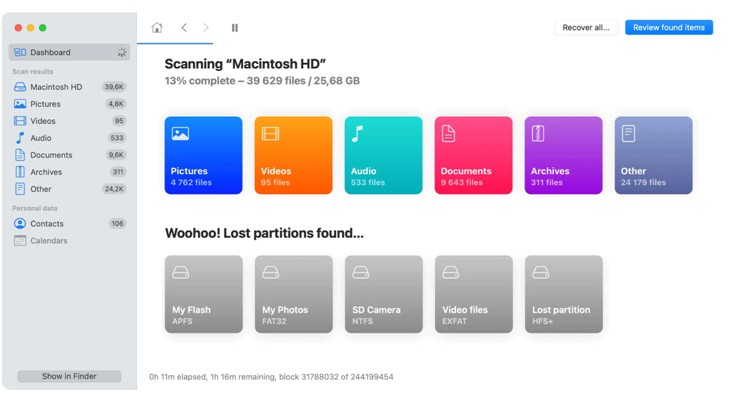
Key Features:
- Supports 400+ file formats
- Recovery Vault for data protection
- Deep scan and quick scan modes
- Works with external storage devices
Pros:
- Modern interface
- Additional disk monitoring tools
- Reliable performance
Cons:
- Limited free recovery capacity
- Some features locked behind paid version
Best For:
Users who want both recovery and preventive data protection features.
5.PhotoRec (Open-Source Solution)
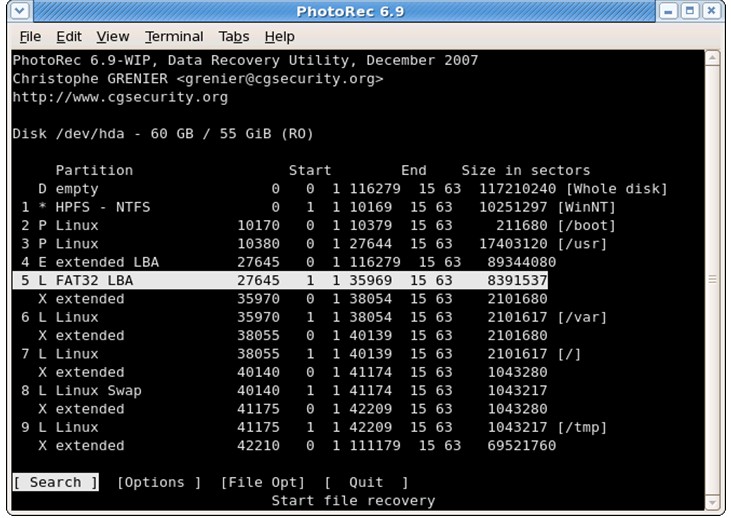
Key Features:
- Supports multiple file systems
- Works on macOS, Windows, and Linux
- Recovers files from damaged drives
Pros:
- Unlimited free recovery
- Strong deep scanning capability
- Works on severely damaged disks
Cons:
- No graphical interface
- No file preview option
Best For:
Tech-savvy users comfortable with Terminal-based tools.
Conclusion
Choosing the right free Mac data recovery software depends on your specific requirements and technical comfort level. Stellar Data Recovery Free for Mac stands out as the most reliable and user-friendly option, while EaseUS and Disk Drill offer balanced alternatives. For advanced users, PhotoRec provides a completely free solution. To minimize data loss risks, always maintain backups using Time Machine or cloud storage.
Comparison Table
| Software | Free Limit | File Systems | Ease of Use | Best For | Platform Support |
|---|---|---|---|---|---|
| Stellar Data Recovery Free | 1 GB Free | APFS, HFS+, HFS, exFAT | Very Easy | Beginners | macOS |
| EaseUS Data Recovery Wizard | 2 GB Free | APFS, HFS+, FAT, exFAT | Easy | General Users | macOS |
| iBoysoft Data Recovery | 1 GB Free | APFS, HFS+, FAT32 | Moderate | Advanced Recovery | macOS |
| Disk Drill | 500 MB Free | Multiple | Easy | Recovery + Protection | macOS |
| PhotoRec | Unlimited | Multiple | Difficult | Tech Users | macOS, Windows, Linux |
Frequently Asked Questions (FAQs)
Q: Is free Mac data recovery software safe to use?
A: Yes, most reputable tools are safe if downloaded from official sources. Always avoid unknown or pirated versions.
Q: Can I recover permanently deleted files on Mac for free?
A: Yes, many tools allow limited free recovery. Open-source tools like PhotoRec offer unlimited recovery.
Q: What is the success rate of data recovery software?
A: It depends on data overwrite and disk condition. The sooner you attempt recovery, the higher the success rate.
Q: Does macOS have built-in recovery options?
A: Yes, Time Machine is Apple’s built-in backup and recovery solution.
Q: Which is the best free Mac data recovery software in 2026?
A: Stellar Data Recovery Free for Mac is widely considered the best due to ease of use and reliability.
About The Author