Microsoft Excel is one of the most widely used applications for managing data, finances, reports, and business operations. However, sometimes unexpected situations can arise when these Excel files are deleted suddenly on your Windows PC. Whether due to accidental deletion, formatting, corruption, or system errors, a lost Excel file may put you in trouble.
Don’t worry – several free data recovery methods are available to recover deleted Excel files. Fortunately, Windows offers some built-in recovery utilities, and reliable third-party data recovery software tools are also available to restore your lost data. In this article, we’ll explore different methods to recover deleted Excel files on Windows in detail. Let’s begin!
Is it Possible to Recover Permanently Deleted Excel Files?
Yes, it is possible to recover your Excel files even if they are permanently deleted. Whether you’ve deleted the file using the Shift + Del keys shortcut or emptied the Recycle Bin folder, data recovery is possible in each scenario. However, the success of recovery depends on how quickly you begin and whether the deleted file has been overwritten.
Why Excel Files Get Deleted on Windows?
Before diving into different free data recovery methods to restore your deleted Excel files on Windows, try understanding the exact reasons for data loss. Some main reasons why the Excel file gets deleted on Windows PC include:
- Accidental Deletion: You might have accidentally deleted an Excel file from your Windows PC while browsing other files and folders.
- Shift + Delete Action: Deleting the Excel files using the Shift + Del keys leads to permanent deletion from the system without sending them to the Recycle Bin.
- Emptied Recycle Bin: When the Recycle Bin is manually emptied or set to auto empty, any deleted Excel files stored inside are permanently removed from easy recovery options.
- Drive Formatting: When you format the drive or partition where your Excel file is stored, especially without backup, it wipes all stored data.
- Corrupted Drive or File System Errors: Hard drive corruption, file system issues, or bad sectors can cause Excel files to disappear unexpectedly
How do I Recover Deleted Excel Files on Windows?
Now that you are familiar with different reasons for the deletion of Excel files on Windows, it’s time to proceed with the adequate recovery workarounds. For easy and hassle-free restoration of your lost Excel file, you can go with below methods:
Method 01: Check the Recycle Bin
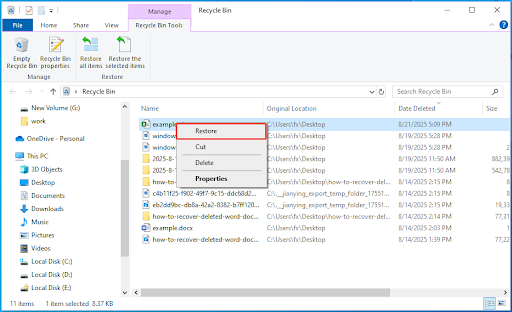
Every deleted file on your Windows PC goes to the Recycle Bin folder and remains there until permanently erased. Before applying any other method, it’s important to check the Recycle Bin folder. To restore a deleted Excel file from the Recycle Bin, you’ve to:
- Double-click the Recycle Bin icon on your desktop.
- Search for your deleted file (using name or file extension).
- Once you get the file, right-click on it and select Restore.
- This will restore the selected file to its original location.
Method 02: Recover Files from File History Backup
If your deleted file is not present in the Recycle Bin folder, it might’ve been permanently erased. In such a case, you can check previously created backups to restore deleted Excel files. Windows offers an in-built File History backup utility, which, when enabled on your device, stores previous versions of files and folders.
To recover deleted Excel files using File History backup, you have to:
- Press the Windows + S keys and type Control Panel in the search box. Press Enter to launch the Control Panel app.
- Go to System and Security > File History.
- Now, click on Restore personal files.
- Browse through the backup files and select the Excel file you want to restore.
- Click Restore to save selected files in their original location.

Method 03: Recover Unsaved Excel File Using Excel’s AutoRecover Feature
The latest MS Excel versions come with a built-in AutoRecover feature, which keeps saving your Excel files at regular intervals. This feature is mainly helpful when your computer experiences a crash due to insufficient RAM or an unexpected power loss. To recover your lost Excel file using this feature, you’ve to:
- Launch Excel, click on File from the menu bar at the top and then choose Open.
- From the Recent section, tap the Recover Unsaved Workbooks option.

- Browse through the list of unsaved files and select the desired file you want.
- Open the selected file and save it on your device.
Method 04: Recover Excel Files from OneDrive or Cloud Backups
Along with Windows’ built-in backup utilities, you can use cloud backup tools like OneDrive, Google Drive, Dropbox, etc., to restore your deleted files. These cloud backups, when synced on your Windows, help in restoring deleted files or earlier versions. All you have to do is:
- Firstly, you need to open a web browser and sign in to your cloud account (OneDrive, Google Drive, or Dropbox).
- Navigate to the Recycle Bin or Trash folder and find the specific Excel file you want to recover.
- Once located, click on the file and choose the Restore option. This will return the file to its original location.
After restoration, download the file to your computer or let it sync automatically if using a cloud-synced folder.
Method 05: Try Free Data Recovery Software to Restore Excel Files
It might be possible that your deleted Excel file is not present in the aforementioned backups. In such a case, you can try third-party free data recovery software tools like Stellar Data Recovery Free to restore your lost Excel files without any cost. This all-in-one data recovery software helps in easy and quick recovery of files deleted due to accidental deletion, formatting, system failure, or any other reason.
Key Features of Stellar Data Recovery Free Tool:
- Besides Excel files, the Stellar Data Recovery Free tool can also recover deleted photos, videos, documents, and many other file types in various formats.
- The free version supports recovery of lost files up to 1 GB of files. To recover deleted files of larger size, you need to use the premium versions.
- This free data recovery software allows you to preview the recoverable files before saving them on your device.
Here’s how to recover deleted Excel files using this free data recovery software:
Step 1: Firstly, download and install the Stellar Data Recovery Free software from its official website on your Windows PC.
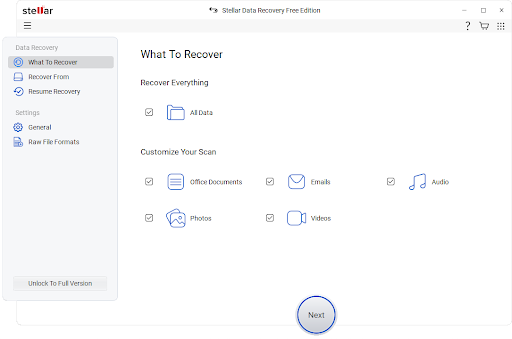
Step 2: Launch the software and from the homepage, select the file types you want to recover. For Excel, choose Office Documents (or All Data to scan everything). Click Next to continue.
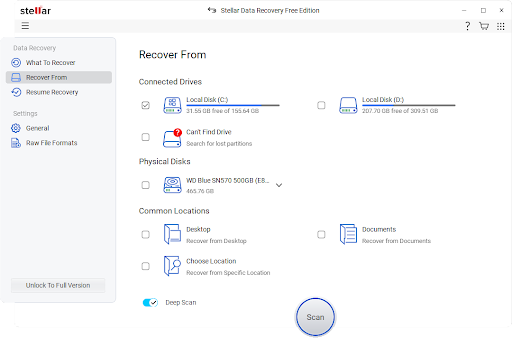
Step 3: Now, select the drive or folder where the deleted Excel file was earlier stored and click Scan to start the scanning process.
Step 4: Once the scan completes, preview the recoverable files and locate the Excel file you want to restore. Click Recover to save the recovered file to a different drive or folder to avoid overwriting other lost data.

Wrapping Up
Losing Excel files can be frustrating, especially if they contain important information. If you ever encounter sudden deletion of Excel files on Windows, go with basic recovery workarounds like checking the Recycle Bin, File History, or AutoRecover backups, and then move on to cloud backups. However, if you don’t have any backup, proceed with third-party free data recovery software tools like Stellar Data Recovery Free to restore your deleted files.
By using the above methods one by one, you can significantly increase the chances of successfully recovering your deleted Excel files on Windows and ensure better data protection in the future.
About The Author